Novadesko and Gemini: your figures, from the terminal to the enterprise console
Two commands in Gemini CLI and Google's assistant reads your unpaid invoices, prepares your quotes and answers VAT questions with your real figures. For teams, the administrator plugs the same MCP connector into the Gemini Enterprise console. One thing needs saying straight away: the consumer Gemini app does not accept custom connectors in Belgium yet. This page explains what works today, how, and what is not possible yet.
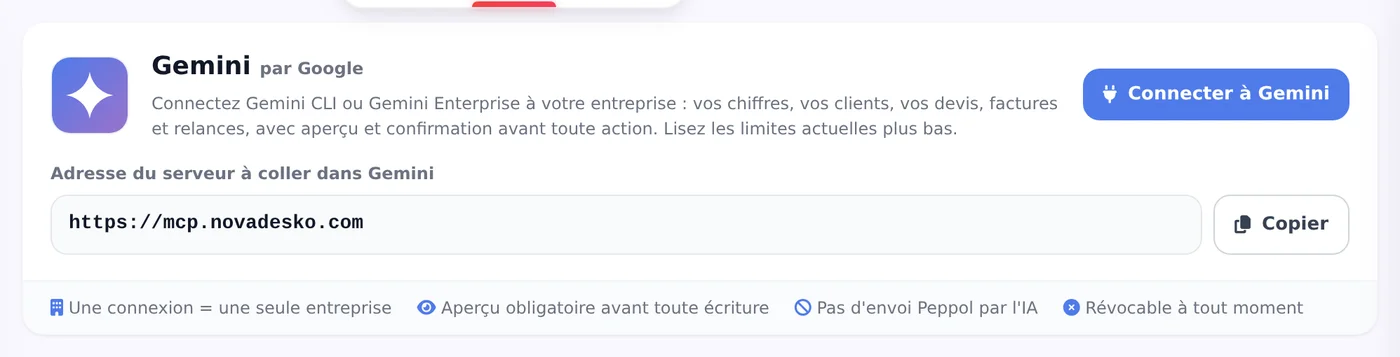
In Gemini CLI, type gemini mcp add --transport http novadesko https://mcp.novadesko.com then /mcp auth novadesko, and authorise your company in the browser. In Gemini Enterprise, the administrator first creates a client ID in Novadesko, then adds a custom MCP connector in the Google console. The consumer Gemini app, for its part, does not yet let you add a custom connector in Belgium.
Connector address
https://mcp.novadesko.com, the same for Gemini, Claude and ChatGPT
Connection
OAuth 2.1 with PKCE, automatic client registration in Gemini CLI, never a password
Price
No Novadesko surcharge today, the Gemini subscription is paid to Google
Control
Every action first produces a preview valid for 30 minutes, which you confirm before anything is saved
Where does Gemini connect to Novadesko today?
Gemini product
Available
How
Gemini CLI
Yes, everywhere
Two commands in the terminal, see the steps below
Gemini Enterprise
Yes, in preview at Google
Custom MCP connector added by the administrator in the console
Gemini app (gemini.google.com, mobile)
Not yet in Belgium
Custom connectors are only announced in the United States, for personal accounts with a paid Google AI subscription
As soon as Google opens the Gemini app's custom connectors to Belgium or to work accounts, the address to paste will stay the same: https://mcp.novadesko.com.
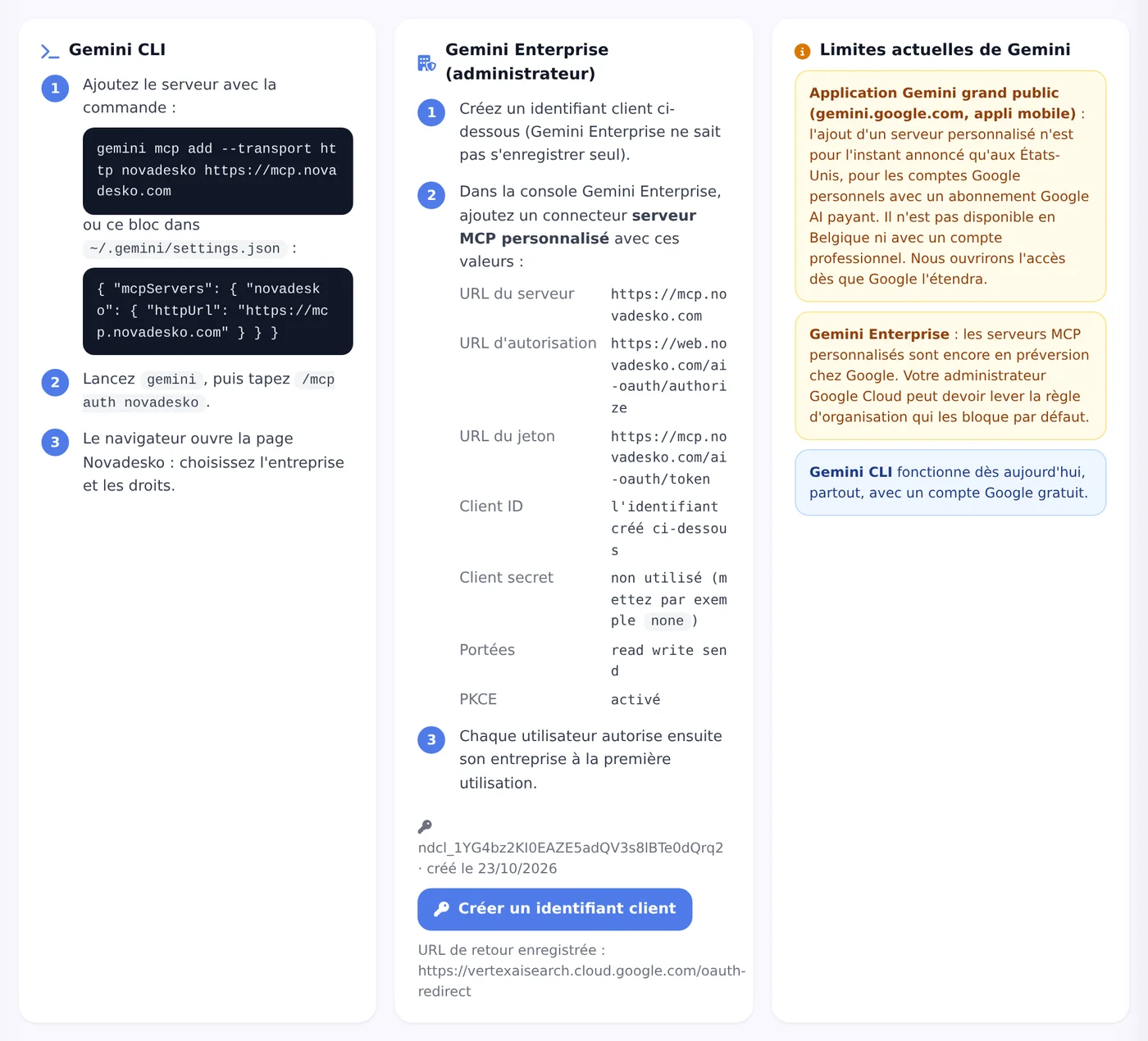
Gemini CLI: connected with two commands
Gemini CLI runs in your terminal and already works everywhere today. Three minutes is all it takes.
Step 1
Open your terminal
Launch a terminal on your machine, with Gemini CLI installed. The next two commands do all the work.
Step 2
Add the connector
Register Novadesko's MCP connector over HTTP transport with this command:
Open Gemini CLI and request the OAuth connection to the connector:
/mcp auth novadesko
Step 4
Authorise access
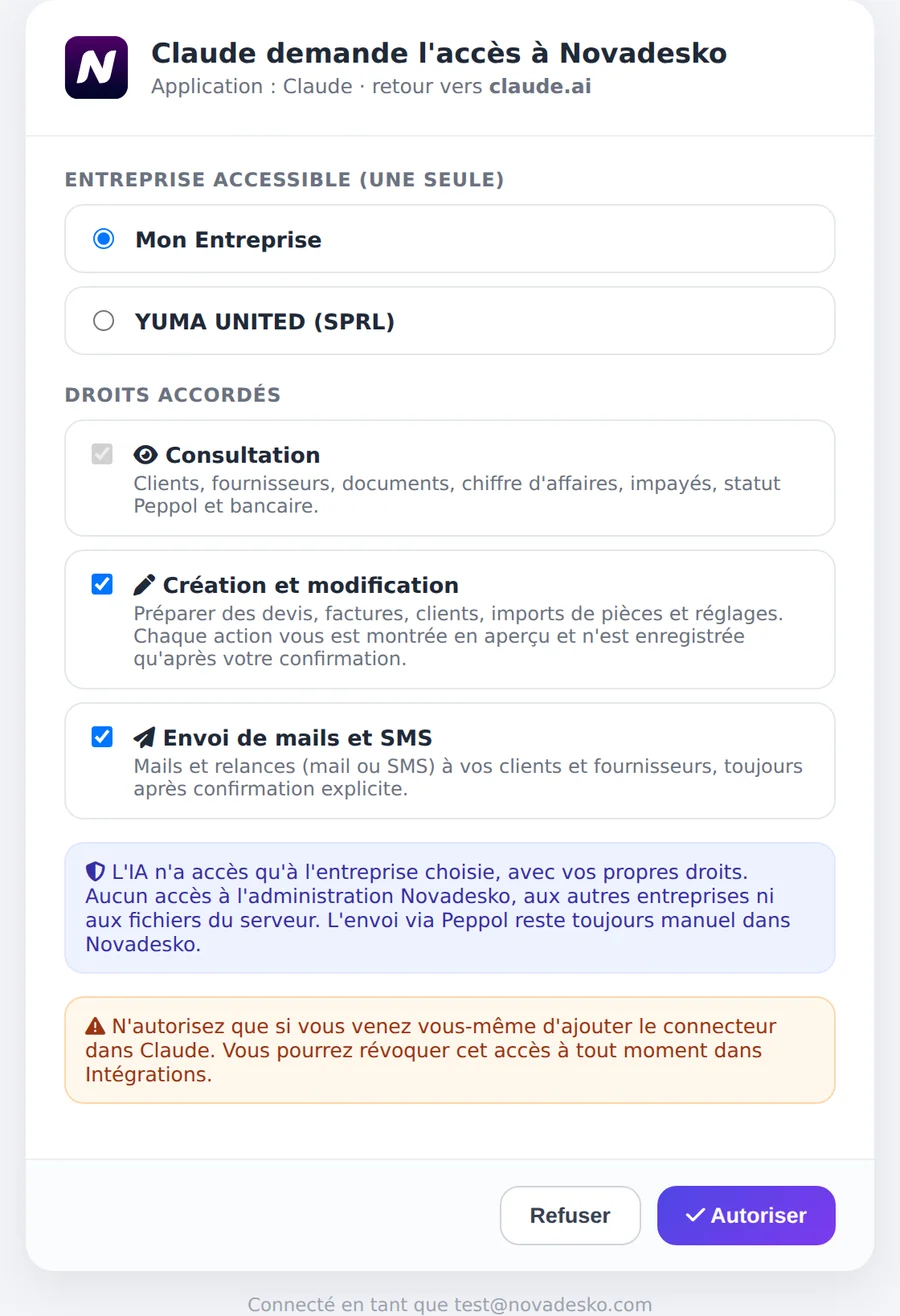
A Novadesko page opens in your browser. Pick your company, tick the rights you grant, then press Authorise.
Step 5
Ask your first question
Back in the terminal, ask for the list of your unpaid invoices, for instance. Gemini answers with today's figures.
The gemini mcp add command registers the connector once and for all. The next time Gemini CLI starts, Novadesko is already there.
Gemini Enterprise: the wiring happens in the console
In Gemini Enterprise, the administrator connects Novadesko for the team, in two moves. First on the Novadesko side: open Integrations, then Gemini, and click Create a client ID. Then on the Google side: in the Gemini Enterprise console, add a custom MCP connector with the values below. Each user then authorises their own connection, through their own Novadesko consent page.
The values to enter in the console
Field
Value
MCP server address
https://mcp.novadesko.com
Authorisation URL
https://web.novadesko.com/ai-oauth/authorize
Token URL
https://mcp.novadesko.com/ai-oauth/token
Scopes
read write send
PKCE
Enabled
At Google, custom MCP connectors for Gemini Enterprise are still in preview: your Google administrator may need to lift an organisation policy before the option appears in the console.
What about the Gemini app on your phone?
Let's be frank: the consumer Gemini app, the one on gemini.google.com and on mobile, does not yet let you add a custom connector in Belgium, nor with a work account. Google has only announced that possibility in the United States, for personal accounts with a paid Google AI subscription. Until that changes, Novadesko does not connect to it, and anyone promising you otherwise is mistaken.
In the meantime, Gemini CLI already covers personal use, and Gemini Enterprise covers team use. If the consumer app is what you are missing, Claude (claude.ai, desktop and mobile apps) and ChatGPT (chatgpt.com, in developer mode) accept the same connector.
On the reading side, Gemini answers about the revenue of a period with comparison, your best clients and products, unpaid invoices, reminders, SMS credits, the Peppol status, the accounting sync (WinAuditor, WinBooks Connect, Horus and others) and the bank sync, and it runs management analyses: VAT, purchases, fixed costs, projections, stock. It also searches and reads your clients, suppliers, documents and products.
On the preparation side, it drafts a client or a supplier, a quote, an invoice, a purchase order, a receipt, a proforma, a credit note, the conversion of a document, a received payment, terms and conditions, the import of a purchase invoice it has read itself, a Peppol request to the team, a support ticket, an email or a reminder by email or SMS.
These tools are not specific to Gemini: the same ones power Nova AI, the assistant built into Novadesko, and the Claude and ChatGPT connectors.
One company, chosen rights, never a password
When you authorise, a Novadesko page opens in your browser. There you designate a single company and tick the rights Gemini will receive, nothing more. Your password never leaves Novadesko: the connection relies on OAuth 2.1 with PKCE, and in Gemini CLI the client registers automatically, with nothing to copy over.
Right
Scope
Granted
Read access
Read figures, documents and records
Always
Create and edit
Prepare quotes, invoices and records
If you tick it
Send emails and SMS
Reminders and messages to your clients
If you tick it
Nothing is saved without your preview
Every creation, change or sending you ask of Gemini first produces a preview, often as a PDF, valid for thirty minutes. You check it, you give your go-ahead, and a single-use confirmation token carries out the action. The legal invoice number is only assigned at that moment.
In the terminal as in the enterprise console, the rule stays the same: Gemini proposes, you decide. Until you confirm, not a line has moved in your Novadesko account.
What Gemini never does
Send an invoice through Peppol: sending via Peppol remains a manual step inside Novadesko.
Access another company than the one authorised, the administration area or your files.
Delete your account.
Save or send anything without your explicit confirmation.
Activity log, revocation and privacy
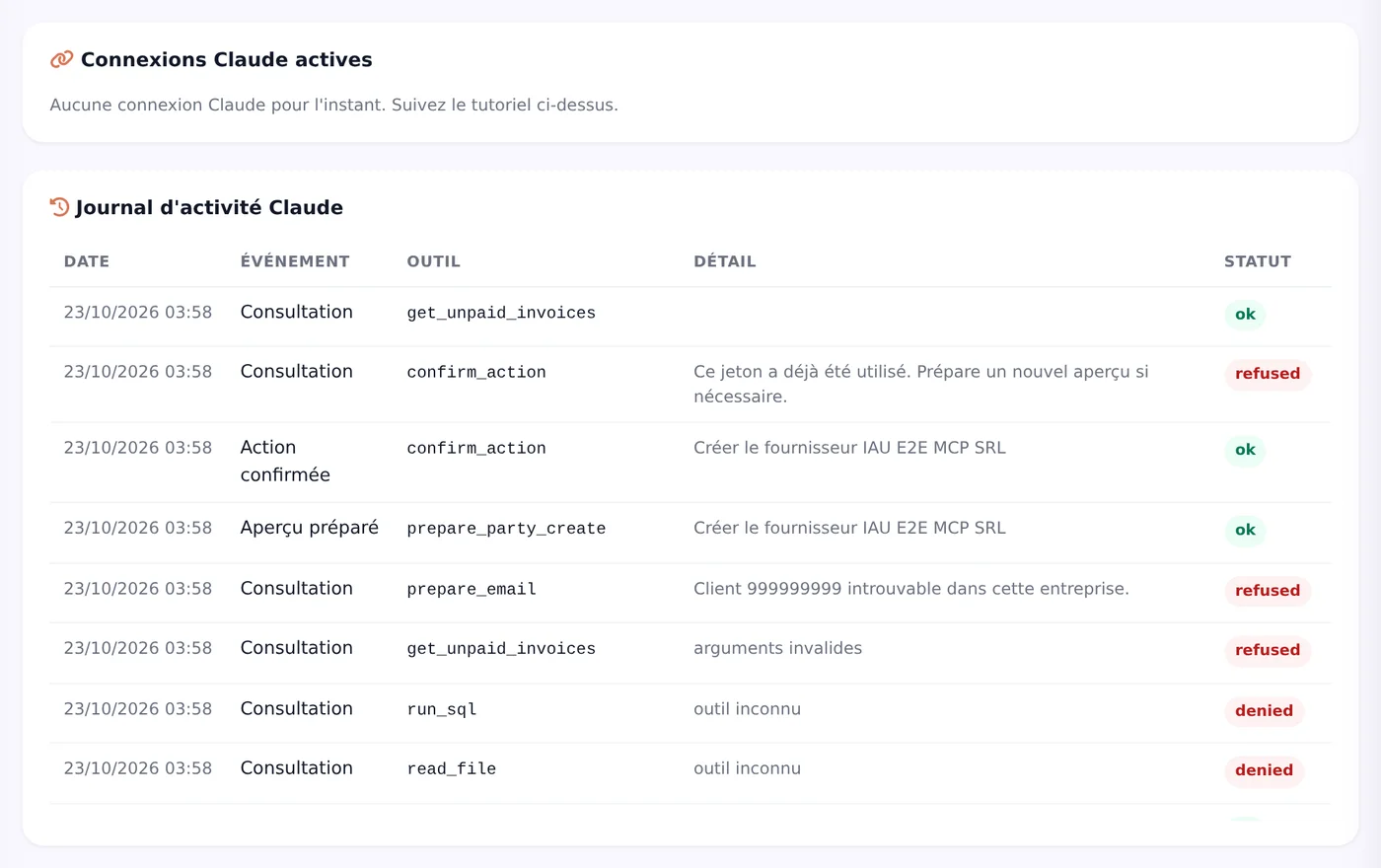
Every connection has its own activity log, visible in Novadesko under Integrations. If something looks odd, the Revoke button cuts access on the spot, for Gemini CLI as well as for a Gemini Enterprise connection.
Novadesko does not store your conversations: it only receives the tool requests Gemini sends it. The conversation itself stays with Google, under its terms.
Healthy usage limits
Limit
Value
Calls per minute per connection
120
Calls per minute per company
400
Confirmations per hour
30
What about the subscription?
Today, the connection requires no particular plan and no surcharge. Gemini simply follows the rules of your Novadesko plan: if a feature is not included, it tells you so politely and names the smallest plan that contains it, with its price. The details of the plans are on the pricing page.
The subscription to Gemini itself is paid to Google, not to Novadesko.
Can I connect Novadesko to the Gemini app on my phone?
Not yet. The consumer Gemini app, on gemini.google.com and on mobile, does not accept custom connectors in Belgium yet, nor with a work account: Google has only announced them in the United States, for personal accounts with a paid Google AI subscription. Today, Gemini connects to Novadesko through Gemini CLI or Gemini Enterprise.
Which commands do I type in Gemini CLI?
Two: gemini mcp add --transport http novadesko https://mcp.novadesko.com to register the connector, then /mcp auth novadesko inside Gemini CLI to start the OAuth connection. A Novadesko page then opens in your browser to choose the company and the rights.
What does the administrator have to do in Gemini Enterprise?
Two things. In Novadesko, open Integrations, then Gemini, and click Create a client ID. In the Gemini Enterprise console, then add a custom MCP connector with the address https://mcp.novadesko.com, the authorisation URL https://web.novadesko.com/ai-oauth/authorize, the token URL https://mcp.novadesko.com/ai-oauth/token, the scopes read write send and PKCE enabled. The feature is still in preview at Google and an organisation policy may need to be lifted.
Can Gemini send an invoice on its own?
No. It prepares the invoice and Novadesko shows you a preview valid for thirty minutes. The legal number is only assigned upon your confirmation, and sending through Peppol remains a manual step inside Novadesko.
Do I have to give Gemini my Novadesko password?
Never. The connection goes through OAuth 2.1 with PKCE: a Novadesko page opens, you choose the company and the rights, then you authorise. Access can be revoked at any time from Novadesko, under Integrations.
Does connecting Gemini to Novadesko cost anything?
No, today it requires no particular plan and no Novadesko surcharge. Gemini applies the rules of your plan: a feature that is not included is politely declined, with the smallest plan that contains it and its price. The subscription to Gemini itself is paid to Google.
Does Novadesko keep my conversations with Gemini?
No. Novadesko only receives the tool requests, never the conversation itself. That stays with Google, under the terms of your Gemini subscription.
We use different types of cookies. You can enable or disable each category below. Essential cookies cannot be disabled as they are required for the site to function.
Essential cookiesAlways active
Required for the site to work: session, security, language preferences. No personal data is shared.
Analytics cookies
Help us understand how you use the site (pages visited, visit duration) via Google Analytics. Data is anonymized.
Marketing cookies
Allow us to measure the effectiveness of our advertising campaigns and offer you relevant content via Google Tag Manager. They also let us recognise your visit when you arrive through a link in our e-mails (internal use only).